
How to recover the Unallocated space on Your SD card due to Raspberry Pi OS
— February 14, 2013When you install Raspberry Pi OS Image onto your SD card, it allocates the storage as per its requirement on the card and leaves the rest of the memory unallocated. So when you want to use the card for normal storage purposes, it shows storage capacity much less than the actual value, because major part of the SD card is unallocated memory. It happened to me when i loaded the Raspbian Wheezy onto my 16 GB SD card and ran it successfully but when i formatted my card to use it for normal storage for my Camera. It was showing memory capacity as 56 MB instead of regular 14.8 GB. If you encounter same sort of problem, no need to worry, here is a quick solution.
To get your memory back as normal storage do the following steps in Windows7.
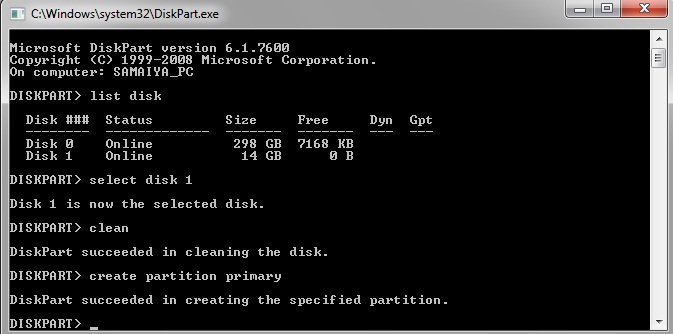
- Press Windows-R and type DiskPart in the ‘Open’ box.
- This will bring up a DOS box with DiskPart running in it.
- Type ‘list disk’ and look for the disk that resembles your SD card. (For this tutorial, we’ll assume it’s Disk 1)
- Type ‘select disk 1′
- BE REALLY SURE YOU WANT TO WIPE THE CARD.
- Type ‘clean’. This resets the disk.
- Type ‘create partition primary’
- Type ‘exit’ to quit.
About author

Leave a reply

30 Comments
Hi thanks for the tip. Unfortunately it doesn’t work under windows xp.
Will have to find an other solution….
Very helpful article, i thought that my SD Card has been damaged! thank you
Hello!
I have this problem, and this is the seventh thread I read without solving it!
I tried SD Formatting Tool, Windows Manager, DiskPart… but still 56MB is the maximun I can “see”…
Maybe it’s worth buying another SD card
Thank you in advance for any other suggestions!
Thank you very much!
It solved my problem.
Regards,
Sergio Soares (Brazil).
This is still just giving me my original 56mb from my sd card. Whats the trick to get the whole 8gb card bacl??
Hi Alvaro and chris,
Go it working
I’ve hunted for a fix before, tried all the other pages as well. Pretty frustrating!
The trick I found was to:
Use DISKPART as suggested BUT, run it twice, heck run it three times, but DONT run the cmd line ‘create partition primary’. Just type Exit. Then do all steps again. and again. until ‘List Disk’ shows the correct size of your SD card.
Hopefully this helps others as I have been in this situation before ages ago and it 2has taken me another 15mins to figure out haha
Good luck!
Ewan
This worked for me. Thanks!
Thank you for this article. Bless you. I thought I had turned my sd card into a bookmark. Followed you instruction and now I have recovered my space.
Great, thank you worked perfectly!!!
This solved my problem! Thanks!
Running W7 on my laptop, and it worked flawlessly!
Thank you!
A lot more helpful than Windows Help.
Fixed the problem with a few simple steps.
I’ve tried this, and i’ve tried doing it a few times as suggested in a comment but still not working :s
Worked but had to use this program after everything with the format size adjustment set to on in options to reformat then it worked
Download and install the SD Association’s Formatting tool from https://www.sdcard.org/downloads/formatter_4/eula_windows/
The only thing that worked for me was following the directions above and then removing the SD card and then reinserting the card back into the computer. Now it shows the full size.
great post
Thanks a lot, this article helped me in the right time!
Hello,
I tried to all the steps but i am getting this error
“Diskpart has encountered an error: data error(cyclic redundancy check).see the system event log for more information.”
Plz help me
Thankyou.
I have been using Windows since a while now and I was actually not aware about this utility.. If I would have known it earlier then I could have actually saved a lot of money that I spent of Photo Recovery Software.. I have tried different softwares and currently I am using Stellar Phoenix which was working good.. but this looks like a better solution.. Thanks a lot buddy..!!
Thank you soo much for this article! I bought a bunch of class 10 16 gb sd cards and they showed up as 1 gb, I thought I got scammed.
I’ve spend 10 hours to figure out the problem and thanks for this post.
Diskpart is works for me when not use Create Partition Primary.
Thank you.
I’ve tried SDFormater, HP USB disk format tool, BootIce and other software without any luck.
thanks! if i had linux installed it would’ve been cake but i am a bit shaky on dos commands
Thank you !
Saved my day
Thank you!!! Simple solution and clear tutorial!
very useful & much needed information for all the users of Raspberry PI.
Thanks
this solved my problem as well
oh you type in “select” disk 2
no wonder
what if the unallocated space is 7.5 gb and my sd card is 8gb? what should i do? p
Thanks! This has been bothering me for weeks and I couldn’t come up with a solution. Perfect! A simple web search and a few DOS commands POOF, I have my 16GBs! Thanks!
“AOMEI Partition Assistant” was the only program that worked for me 100%. Now I only use this one for almost everything related to SD cards.
Worked Great for me
Thanks